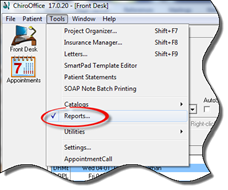
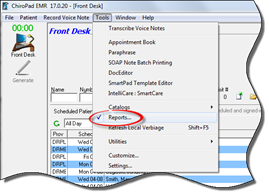
Reports are readily available through the Tools menu in both ChiroOffice and ChiroPadEMR (figure 1).
Figure 1
This will display the Reports window (figure 2). Note the differences between ChiroOffice and ChiroPadEMR.
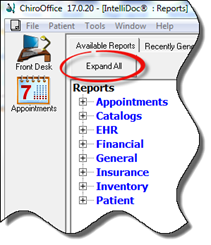
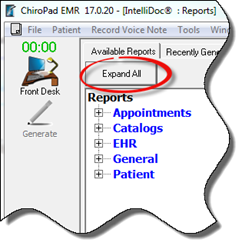
Figure 2
In order to have a list of and to be able to select from all the reports contained within all the categories, click on the Expand All button. To view and select only the reports within a single category, click on the plus (+) symbol next to each report category. Once a report is selected and generated it will provide an on-screen preview for examination that reduces or eliminates the need to print the report.
Once the Expand All button has been clicked, each report is listed in its category (figure 3).
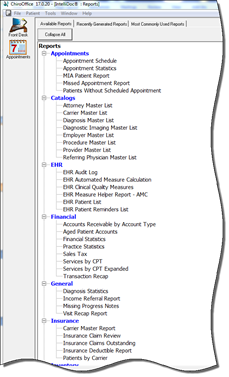
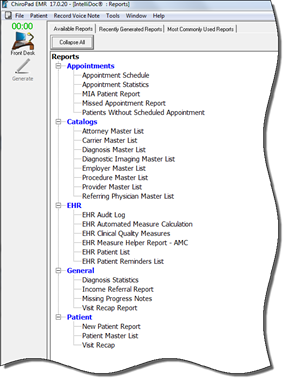
Figure 3
There are a couple of things to keep in mind while using reports. First, there is the ability to move around in the current page by using the scrollbars, the scroll wheel on the mouse, or by clicking and dragging with the mouse. Second, on each page of a report it is possible to zoom in and out using the Zoom button or the Zoom Menu (figure 4), or by double-clicking on the report with the left mouse button to zoom in and double-clicking with the right mouse button to zoom out.
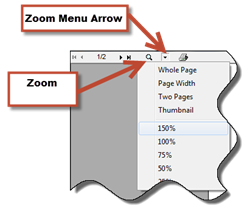
Figure 4
To generate the desired report, click on its name, if a pop up appears, enter/select the criteria for the report, and click OK.