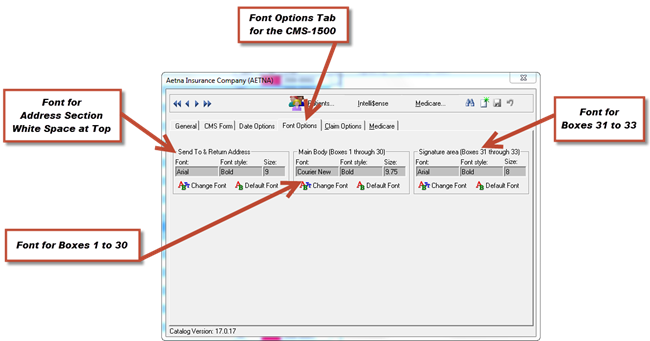
Most offices find that the default setting in the Font Options tab work well. However, there are occasions when the fonts that print on the CMS-1500 need to be changed. Medicare is a prime example. For those that submit Medicare claims on paper, Medicare requires that the font size MUST be between 10 and 12. If it is less than 10 or greater than 12, then Medicare will reject the claim. See Figure 18 below.
Figure 18
As this is being written, no other insurance carrier measures the fonts on paper claims.
For purposes of the font options, the CMS-1500 is divided into 3 sections:
•Address Area White Space at the top of the form
•Main body of form boxes 1 to 30
•Signature and Office Address boxes 31 to 33
The font in the Address area is not measured at this time. This means that for the Address area section, there is no need to change the font.
Medicare DOES measure the font sizes in boxes 1 to 33, so the other 2 sections, Main Body and Signature will require modification when submitting paper claims to Medicare.
Within each section, there is a separate font selection box. See figure 19. To change the font, click on the Change Font button. To revert to the default font, click the Default Font button.
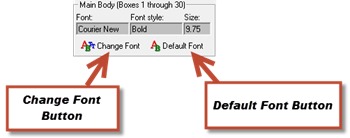
Figure 19
Upon clicking the Change Font button, the font selection window appears. See figure 20.
Once the selection window is open, click on the font to use, the style of the font (regular, boldface, italic, etc.) and the size it should be. As a final step, click OK, which returns to the Font Options tab. Now click the Save icon to insure that the changes made will take full effect.
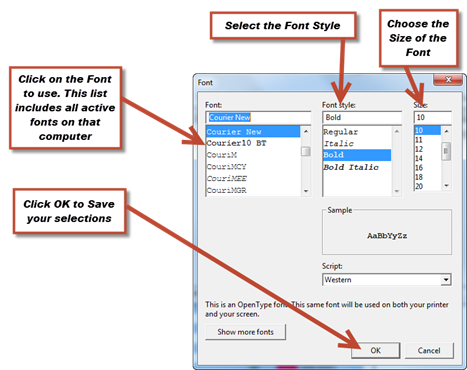
Figure 20