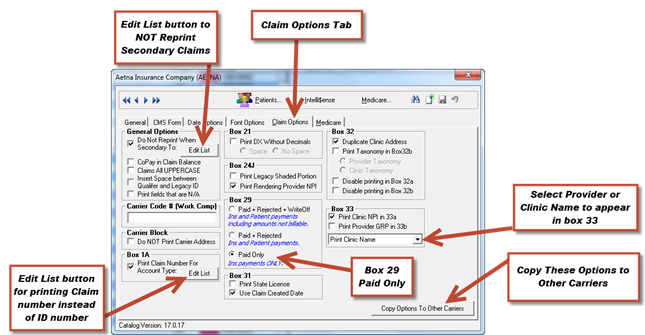
There are many options that are available that pertain to the production and printing of claims for this insurance company. In the Insurance Carrier catalog, click on the Claim Options tab. See figure 21. This is where you will fine tune claims to meet the requirements of each insurance carrier.
Figure 21
If the insurance company is paying with the options already selected, do NOT make any changes unless the insurance carrier notifies you that you must make a change.
In the event that payments are not flowing the way you would like, then check with the insurance carrier as to the reason for the slow processing. They may tell you that various items on the CMS-1500 need to appear differently, and then you should make the necessary changes.
Do Not Reprint When Secondary To:
•There are some insurance programs, such as Medicare, that will automatically submit the claim to the patient’s secondary insurance carrier after it has been processed. The result is that it is not only not necessary but also a waste of time and paper to submit a claim with an EOB (explanation of benefits) to the secondary carrier.
•Placing a check in this option means that the ChiroOffice section of ChiroSuiteEHR will process the claim and list the payment due from the secondary company AFTER the payment from the primary has been processed, but will NOT print or electronically submit the claim to the secondary carrier. In addition to placing a check in this item, also click the Edit List button and select the primary carriers to identify those that automatically submit the claims to this insurance carrier when it is the secondary carrier.
CoPay in Claim Balance
•Select this option provided that 2 conditions are met:
o [1] the practice is accepting assignment for the insurance carrier to pay direct to the practice and
o [2] when this insurance program will pay the patient if any amount paid appears in box 29 on the CMS-1500.
•This option means that box 29 will show no amount paid, and the balance due in box 31 will equal the total charge shown in box 28.
Claims All UPPERCASE
•Many years ago there were several insurance carriers that wanted everything on the HCFA-1500 to print with all uppercase letters. This is now a very rare situation. The option was left in the system so that even in a rare situation, the ability to print all uppercase is still available.
Insert Space between Qualifier and Legacy ID
•This information usually appears in boxes 24i and 24j of the CMS-1500, and could be needed in box 17a, 32b, or 33b.
•Some insurance programs want the qualifier and legacy ID to appear as a single large number. Others want to see a clear separation between the 2 items. If the carrier is rejecting claims due to a lack of a space between the qualifier and legacy ID, then place a check in this option.
Print fields that are N/A
•If entries were made in the patient’s Insurance Policy window with the capital letters N/A, then placing a check in this option will have the N/A print on the CMS-1500. When this option is NOT checked, the system will leave those boxes blank. Some insurance carriers demand that the boxes be blank if there is no data to place in them while other companies demand that the N/A must be there so they know that you did not forget to enter the data.
Carrier Code #
•There are some States, such as New York, that give code numbers to the Workers’ Compensation insurance carriers. In order to get paid, it is necessary to have the Carrier Code number appear in the billing. As this is being written, this applies only to the New York C4 Workers’ Compensation forms generated by ChiroSuiteEHR and does NOT show on the CMS-1500.
Carrier Block
•Most of the time the large white area at the top right of the CMS-1500 form is used by the ChiroOffice section of ChiroSuiteEHR to print the insurance company name and address. Some insurance carriers demand that this area is blank so they can use it for their own purposes. If an insurance company requires that this area be blank, place a check in this box. Otherwise, leave it unchecked in order to have the insurance carrier name and address print in this space.
Box 1A
•The Insured ID Number usually goes in box 1a of the CMS-1500. Under certain circumstances (Auto or work injuries), the Insured ID Number is NOT the same as the Claim Number. In the patient’s Insurance Policy Billing tab, enter the Claim Number in the box at the lower middle left area of the window. Place a check in this box, and click the Edit List button to select the account type (such as AU for auto or PI for personal injury, etc.) that this applies to, and then the claim number will print instead of the ID number.
Box 21
•Some insurance carriers demand that the format for the diagnoses in box 21 is different than the standard. If you need to remove the decimal point, and include or exclude spaces in the ICD codes that print in box 21, then place a check in this box and select the appropriate modification.
Box 24J
•Depending on the requirements of the insurance company, it may be necessary to print either or both NPI and legacy identification numbers on each line of service listed in box 24j. Depending on the requirements for this insurance company, place a check in the appropriate box or leave the boxes unchecked.
Box 29
•For accuracy, the ideal option to select for box 29 is the item that shows Paid Only. To satisfy the needs of our clients, the other options are included but under normal circumstances should NOT be used unless required by the insurance carrier. NOTE: The option discussed above of CoPay in Claim Balance overrides the selections here and leaves box 29 blank or with a zero.
Box 31
•This is the signature box on the CMS-1500.
•If each provider from the practice has printed and completed Appendix D from the ChiroOffice manual, and mailed it in to Life Systems Software, then the provider signature will have been digitized and entered in the system. Whenever a CMS-1500 is printed, the signature will automatically be placed in box 31.
•Question: In addition to your signature, should any other item also appear in this box? Life Systems Software recommends that Use Claim Created Date is always checked. The effect is that the date of the claim’s creation will always print under the provider signature.
•If this carrier wants the provider state license in this box instead of the provider signature, check this selection.
Box 32
•Following Medicare’s lead, some insurance companies require the same information in Box 32 as in Box 33. If this company makes that demand, place a check in the box to Duplicate Clinic Address.
•If taxonomy numbers have been issued to you by your state, those numbers are entered in the system in the Provider catalog. Should this insurance carrier, usually Medicaid, require that the taxonomy number is printed in box 32b, place a check in the box to Print Taxonomy in Box 32b and then select either Provider Taxonomy or Clinic Taxonomy.
•Some insurance programs require printing in either or both boxes 32a and 32b. Others require that either or both boxes 32a and 32b remain blank. In the event that this insurance carrier requires that they be blank, place a check to disable printing in the appropriate box(es).
Box 33
•The default for box 33a is to print the provider’s NPI. If the preference is that the clinic NPI should print in box 33a, then place a check in the box labeled Print Clinic NPI in 33a.
•If the insurance carrier requires that the Group number print in box 33b, then place a check in the box labeled Print Provider GRP in 33b.
•From the drop down box, select which entity should print and display in box 33, either the provider name or the clinic name. Remember that the insurance carriers typically write checks to the name that appears in this box.
Click the SAVE button when you are finished making entries in the Options boxes. Not only does this make this effective for the insurance carrier, but also makes the Copy Options to Other Carriers button active. If the options you selected apply to multiple carriers, click the Copy Options to Other Carriers button, select the carriers the options apply to, and click the Save button.