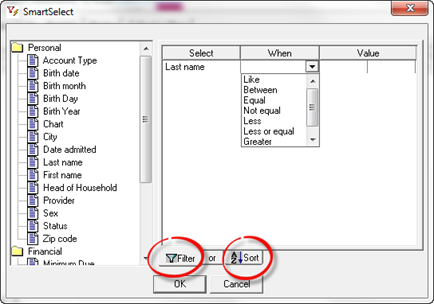
The SmartSelect window (figure 1), is divided into two main sections. In the left portion of the window, you have a list of available search criteria. On the right, you have the controls to define your selection criteria.
Figure 1
Steps to use SmartSelect:
1. From the column on the left double click on the search criteria category (Personal, Financial, Referral Information) to expand the list in that category. The search criteria are now listed.
2. Multiple search criteria can be selected, but each must be chosen individually. Double click on the search criteria. The item selected appears in the Select column on the right.
3. In the When column, click once and a drop down arrow appears.
4. Click on the drop down arrow and choose the qualifier for the search. The list of qualifiers is displayed above in figure 1.
5. Enter the value(s) for the search in the Value column. If the qualifier requires only one value, enter it in the left Value column. If 2 values are needed, enter the beginning Value in the left column and the ending Value in the right column.
6. Repeat steps 2 to 5 to include all the search criteria that you want.
7. At the bottom of the SmartSelect window there are 2 tabs, Filter and Sort. When SmartSelect opens, it defaults to the Filter tab. To sort the results of the filter search, click on the tab Sort and the screen shown in Figure 2 appears.
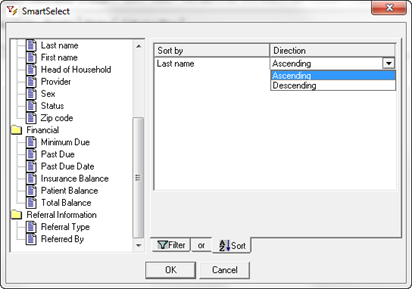
Figure 2
8. Select the Sort criteria by double clicking on the criteria desired for the sort. There are 2 columns in the Sort screen, Sort By and Direction. The selected Sort criteria will be listed in the Sort By column. The Direction of the Sort is chosen in the Direction column.
9. Determine the Direction of the Sort. The default is to Ascending so if no selection is needed or made by the user then that is the direction that will be used. If the direction is Descending, then click on the drop down arrow and then click Descending. If the items selected are in alphabetical format, then the list produced will be alphabetical. Ascending goes from A to Z and Descending is from Z to A. If the list is numerical, Ascending starts with 1 and is in numerical sequence (1-2-3-4…) whereas Descending begins with the largest number and is in reverse numerical sequence (9-8-7-6-…).
10. As with the selection criteria, ChiroSuiteEHR allows for the selection of multiple sort criteria. It is important to recognize that this is a cascading sort.
11. Click OK and your selection will appear