At the top of each carrier’s catalog entry there is an Intelli$ense button. Intelli$ense is the area where several important functions occur. There are 3 tabs in the Intelli$ense window, General, Fee Schedule, and Service & Product Categories.
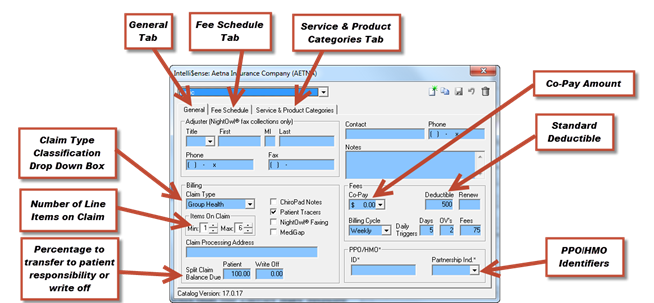
On the General tab, the following functions are available. See figure 24.
Figure 24
•The insurance carrier is classified (Medicare, Medicaid, Group Health, etc.). The classification populates box 1 on the CMS-1500. This is done by selecting the category from the Claim Type drop down box. It is necessary to use the scroll bar that appears to see all the items that can be selected.
•The NightOwl fax collections feature is in development, and can be left blank at this time.
•Default settings are established for the insurance carrier when it is selected for a patient. These defaults settings include
o Maximum number of line items on a claim. Under the Claim Type drop down box is the Items on Claim selector. The minimum (“Min:”) should never be less than 1. The maximum number of line items can be set to any number between 1 and 6. The default is typically 6, allowing 6 line item charges to be listed on the CMS-1500. If there is a reason that you need fewer line items to appear, reduce the max number accordingly.
o ChiroPad Notes is a check box to the right of the Claim Type box. When printing claims on paper, if the SOAP notes need to be included with the claim for this carrier, set this default by placing a check in the box. When the paper claims are printing, there will be a pop up asking if Claim Attachments should be included. Answering Yes/OK will print those SOAP notes that go with the claim that was printed. Any selection for this item done on this window can be overridden in the patient’s insurance policy window.
o Patient Tracers were originally designed to work with legal size claim forms that included a large area at the top of the claim form. Since the cost of those legal size claim forms became prohibitive, this feature is non-functional on the current letter size forms. It is expected that this feature will be restored in a future update as a claim attachment. In preparation for this function, it is recommended that a check is placed in the box next to Patient Tracers. When the functionality is restored this will include claim tracer information when outstanding claims are resubmitted to insurance companies.
o Split Claim Balance Due is the agreement made with the patient to write off a specific percentage of the amount rejected by the insurance carrier. Note that this may be considered a gift or discount, which in many states and Medicare has become an illegal enticement, especially if it is given to all patients covered by this carrier. Any selection for this item done on this window can be overridden in the patient’s insurance policy window. (For more information on the Split Claim Balance Due, see Chapter 9, Billing Section, Transfer% and WriteOff%).
o Contact is entered when there is ONLY ONE person that your office always speaks to at this insurance company. If this is the case, enter the name of that person in the Contact box.
o Phone – enter the phone number used most frequently to call this insurance carrier.
o Notes is for in office reference for the doctor and staff. This information does not print out and frequently can help everyone in the practice understand how to work with this insurance carrier.
o The Co-Pay amount that is common to this carrier. If all, or most, of the patients with policies from this carrier have the same co-pay amount, enter it in the Intelli$ense General tab to save time when entering new insurance policy information for a patient. Any selection for this item done on this window can be overridden in the patient’s insurance policy window.
o The Deductible amount for most policies under this carrier. If all, or most, of the patients with policies from this carrier have the same deductible amount, enter it in the Intelli$ense General tab to save time when entering new insurance policy information for a patient. Any selection for this item done on this window can be overridden in the patient’s insurance policy window.
o PPO/HMO identifiers are entered for those providers that are part of managed care programs.
The Fee Schedule tab enables several options that may result in improved collections from this insurance carrier. See figure 25.
•For each service or product that should be included on this Fee Schedule, click the Add button. The Procedure Pick List appears. Click the plus sign (+) next to the category to see the list of services or products in that group. Double click the specific item to add to the Fee Schedule. The Procedure Pick List will disappear allowing the entry of data on the Fee Schedule.
o Use CPT is for the entry of an alternative code to the standard CPT code. Although rare, there are some insurance programs that require the use of a code other than CPT. Enter the code in the Use CPT column, and for this carrier, any time that specific service or product is selected, the alternative code will be entered on the CMS-1500.
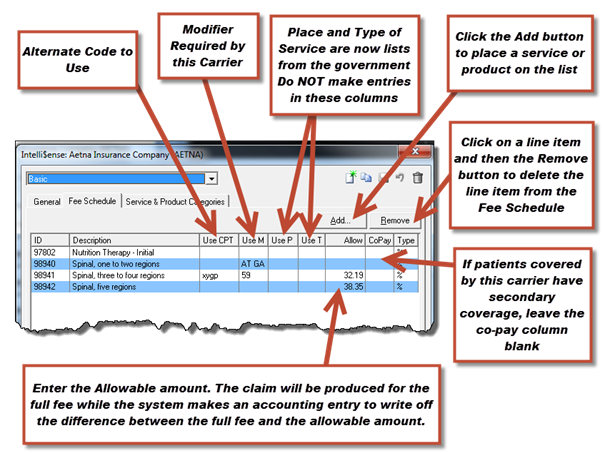
Figure 25
o Use M is to enter the modifier that will always be used for that line item on claims sent to this carrier. Just type in the modifier that is needed and it will print when the claim is produced.
o Use P and Use T date back to a time when each carrier had different codes for Place of Service and Type of Service. The government, under the auspices of Medicare, has standardized these codes. The list for each is built into the ChiroSuiteEHR system, so it is no longer necessary to make entries in these columns.
o Allow is the allowable amount under the agreement with this carrier, or in the case of Medicare, the legal mandate. Entering the allowable or contractual amount in this column does NOT change the standard fee charged by the practice that will be submitted to the insurance carrier. As soon as the claim is produced, ChiroSuiteEHR makes an accounting entry in the patient file, writing off the difference between the fee charged and the allowable amount. When viewing the patient’s Post Insurance window, it will be clear that the balance due is the allowable amount.
o Co-Pay is the amount that is the patient’s responsibility, and based on the Type column, can be set as either a percentage (%) or specific dollar ($) amount. It should be entered ONLY when all the patients covered by this carrier NEVER have secondary insurance. Why? Because the co-pay entered here moves the remaining balance into patient responsibility. If a payment comes in from a secondary carrier, it will not be possible to post it correctly. Bottom line: for most carriers, leave the Co-Pay column blank.
The Service & Product Categories tab is a checklist for those categories of service or products that this carrier will never pay. See figure 26.
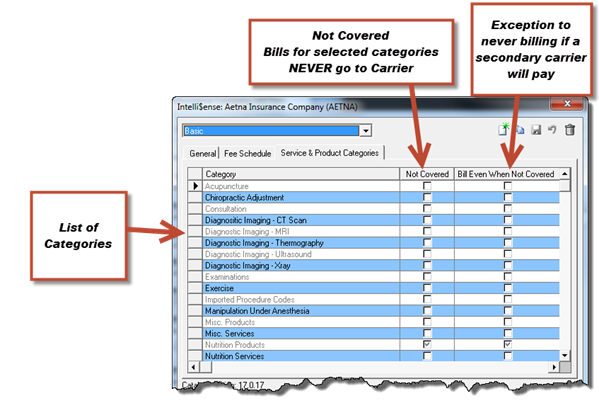
Figure 26
•Placing a check in a service or product category in the Not Covered column
o automatically makes the items in the selected categories patient responsibility
o the charges will never go to this insurance carrier
•In the event that the patient has a secondary carrier that will pay, there is the option to select Bill Even When Not Covered so there will be an EOB for the secondary carrier.