 on the top left side in the Customize ChiroPad
Orthopedic/Neurological Exams window (figure 2). The Add New Folder pop up (figure
5) appears.
on the top left side in the Customize ChiroPad
Orthopedic/Neurological Exams window (figure 2). The Add New Folder pop up (figure
5) appears.Creating Folders is the means of streamlining the time required to enter the results of Orthopedic and Neurological Signs and Tests in the patient Ortho/Neuro window.
To create a new folder, click on the New Folder icon on the top left side in the Customize ChiroPad
Orthopedic/Neurological Exams window (figure 2). The Add New Folder pop up (figure
5) appears.
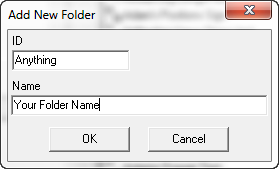
Figure 5
Enter an ID for the Folder. This ID is used by ChiroPadEMR to identify the Folder. The ID can be anything that makes sense, or even nonsense, as long as it is different than the ID for any other Folder in the system. Note that once the ID has been saved, it can NOT be changed.
Now type in the Name of the Folder. This can be anything that makes obvious what are the contents of the Folder. Click OK and the ID and Folder Name are saved.
The newly created Folder will appear at the top of the list of Folders in the Customize ChiroPad Orthopedic/Neurological Exams window.
The option is available to move the Folder to a new location in the Folders list. The order displayed on this window is the same order that the Folders will appear in on the patient’s Ortho/Neuro Test window.
•Point the mouse at and right click on the new Folder
•A pop up menu appears (figure 6)
•Click on the option to Move Down. This will move the test Folder down by one line.
•Repeat until the Folder is at the point in the list that is desired.
•This can be done for any Folder that is anyplace on the list
•If a Folder needs to be placed higher on the list, right click on the Folder
•When the pop up menu appears, click on Move Up. This will move the selected Folder up the list by one line
•Repeat until the Folder is at the desired position in the list.
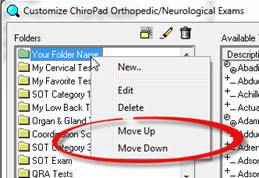
Figure 6