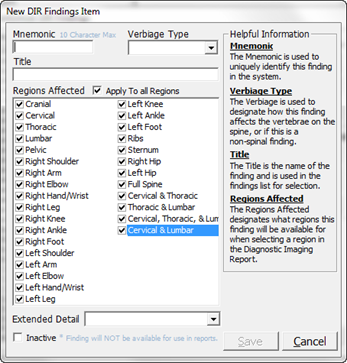
To create a new Finding, click on the New Item button on the Customize DIR Findings window to open the New DIR Findings Item window (figure 6).
Figure 6
Mnemonic must be entered. It is the code that the ChiroPadEMR system uses to identify the Finding. It can be anything desired, up to 10 alpha-numeric characters. Although it will appear in the Customize windows, it does not display in a patient file or report, nor does it print out.
Title is the name of the Finding. Enter the Title the way it should appear in notes and reports.
Verbiage Type determines how the entry of this Finding in a patient file will behave. There are 4 options:
1. Range – This option applies only to spinal findings. When multiple adjacent vertebrae are selected on the patient’s DIR window, the information will generate as a range. For example, if the all the vertebrae from C3 to T5 were selected, the report will show “from C3 to T5”.
2. Individual – This option applies only to spinal findings. When multiple adjacent vertebrae are selected on the patient’s DIR window, the information will generate each vertebra individually. For example, if the all the vertebrae from C3 to T5 were selected, the report will show “C3, C4, C5, C6, C7, T1, T2, T3, T4, and T5”.
3. Left/Right Only – This option applies only to those items that are found only on one side of the body, such as gall stones.
4. Non-Spinal – This option applies to all non-spinal findings, such as those of the extremities.
Regions Affected are the parts of the body that this Finding is related to. If all body parts can be connected to this Finding, then place a check in the box Apply to All Regions. If the Finding does NOT apply to every body part, make sure there is NO check in the Apply to All Regions box and place a check next to each of the body parts that the Finding does apply to.
Extended Detail – Many Findings may require additional information to fully and accurately describe the Finding for a specific patient. For this reason, there are several Extended Detail items in the system. Click on the Extended Detail drop down to see the list of available Extended Detail choices. There is a separate button to create and edit the Extended Detail items. Contained in each Extended Detail Set are 2 to 5 selections. The Extended Detail Sets that are in the system are:
•Calcification
•Curvature
•Disc Degeneration
•Fracture
•Metallic
•Mild to Severe
•Osteophytes
•Scoliosis
•Spinal
•Spondylolisthesis
•Stones
Inactive Checkbox makes it possible to set the specific Finding to Inactive. Any Finding that is set to Inactive will NOT appear in the Findings list on the patient’s DIR window.
When all the entries have been completed, click the Save icon.