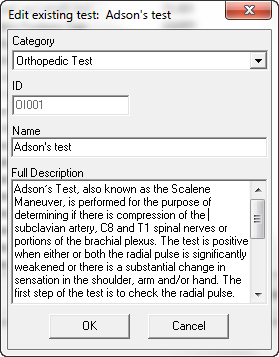
Editing a test on the Available Test list is easy. Scroll down the list of Tests and Signs, and double click on the item to edit, or click on the Test Name to highlight it and click on the Editing Pencil at the upper right corner. This opens the Edit Existing Test pop up window (figure 4).
Figure 4
Once the Edit Existing Test pop up is open, the Category, Name and Full Description may each be changed. After completing the edit, click OK to save the changes and close the pop up window.
There may be Tests and Signs on the Available Test list that you absolutely never use. They will be visible only on this window, unless they have been assigned to a Folder. Any item in a Folder may be removed from the Folder without deleting it from the system. However, if it is critically necessary to remove an item from the Available Test list, click on it to highlight it, and then click the Garbage Can icon.